If you have a Divi background video on your site, accessibility guidelines say that all auto-playing videos need start/stop controls. Unfortunately, Divi doesn’t provide this out of the box.
It’s not terribly hard to add this but Elegant Themes has made it more difficult because their play and pause icons are not the same size and are offset. That means those parameters need to be tweaked in the code when you switch from one to another to avoid the button “jumping” slightly. Totally avoidable with good icon design, but that’s what we have. Or, you can modify this code to use a different icon font that doesn’t have those problems.
Assumptions
I am assuming that you have a single background video in a Divi Section. This code will have to be modified if you have multiple background videos.
The play/pause button will go inside that section at the bottom.
The button will start out as a pause button because the video is auto-playing. When pressed, it will change to a play button and the video will be paused.
The play/pause icon will be 40px wide.
Structural Setup
The first thing you need to do is to add the required Divi modules.
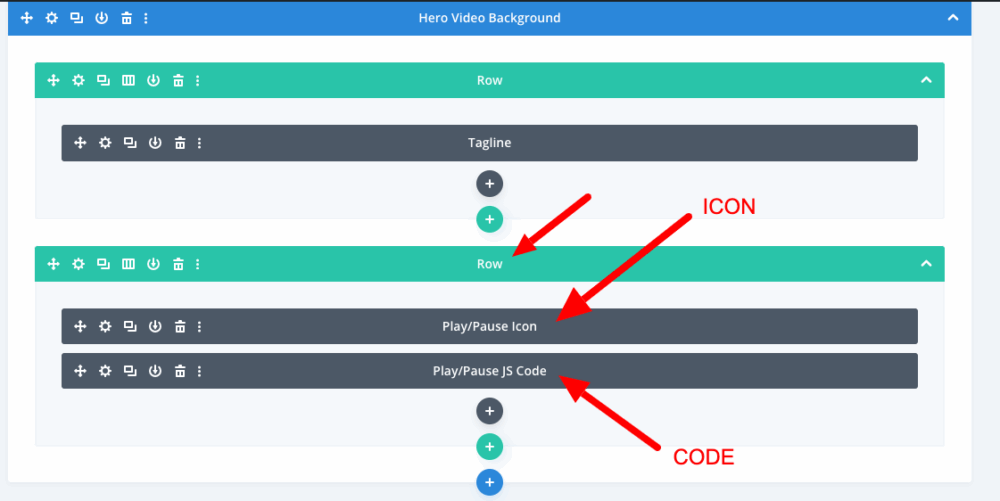
Inside the Section with the video background, add a Row (make it the last element if there are already rows in there).
Inside the Row, add an Icon module and a Code module.
Icon Module Setup
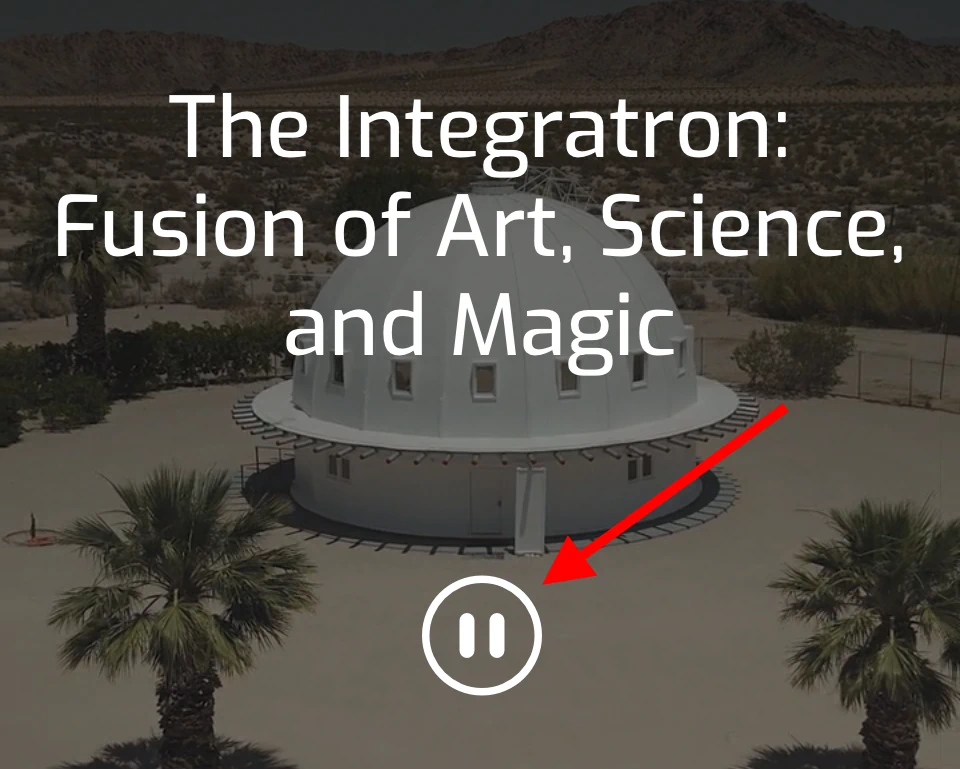
Inside the Icon module, choose the Pause icon. I chose the one that is outlined with a circle with light background.
In Design -> Icon, set the Icon Color to your desired color, and Size to 40px.
Unfortunately, due to the play/pause icon mismatch, if you change the size you’ll have to tweak size and padding settings in the code, so I recommend just starting with 40px and getting everything working first.
In Advanced -> Custom CSS -> Free-Form CSS, add the following styling code:
selector {
  cursor: pointer;
}
In Advanced -> CSS ID & Classes, give the module and ID of “pause_btn”, then save.
Now, view the front end and you should see the pause button on top of your video, but not yet located in the correct position. If you see it, proceed to the next step.
Positioning the Play/Pause Button
I wanted the video Play/Pause button centered within the video near the bottom.
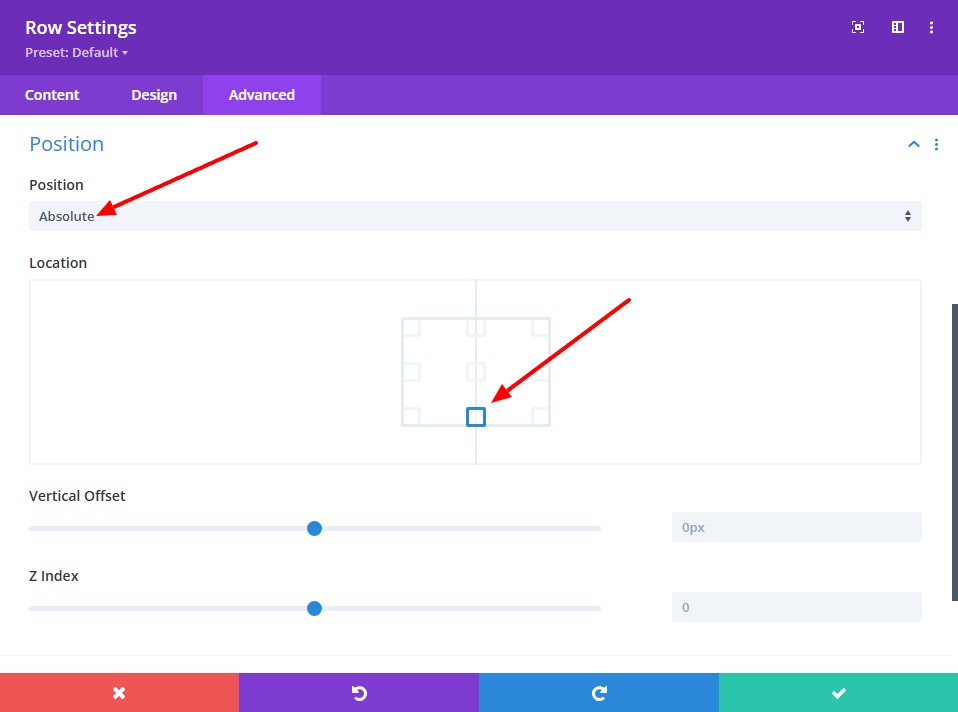
To do that, edit the Row that you just added (not the Icon Module!) and go to Advanced -> Position. Set the Position to Absolute, and choose the bottom center in the Location box (or wherever you want it).
While you’re there, go to Design -> Spacing and set the Bottom Padding to 0, then save.
View the front end. You should see the icon where you want it. Tweak the absolute position if necessary.
The Code
In the Code module, paste in the code below:
<script>
// =======================================
// VIDEO PLAY/PAUSE BUTTON FOR ACCESSIBILITY
// https://dev.brianshim.com
// =======================================
document.addEventListener("DOMContentLoaded", function() {
  // Target the background video inside the first Divi section
  let video = document.querySelector(".et_pb_section_video_bg video");
  let pause_btn = document.querySelector("#pause_btn .et-pb-icon");

  if (video && pause_btn) {
    // DIVI ICON SIZING HACK
    pause_btn.style.padding = "3px 0 0 2px";

    // ARIA LABEL
    pause_btn.ariaLabel = "Pause";

    // MAKE PLAY/PAUSE BUTTON CLICKABLE USING ENTER KEY
    pause_btn.setAttribute('tabindex', '0');
    pause_btn.addEventListener("keydown", function(e) {
      if (e.key === "Enter") {
        e.target.click();
      }
    });

    // PLAY OR PAUSE THE VIDEO ON BUTTON CLICK
    pause_btn.addEventListener("click", function() {
      if (video.paused) {
        video.play();
        pause_btn.ariaLabel = "Pause";
        pause_btn.textContent = "_";
        pause_btn.style.fontSize = "40px";
        pause_btn.style.padding = "3px 0 0 2px";
      } else {
        video.pause();
        pause_btn.ariaLabel = "Play";
        pause_btn.textContent = "I";
        pause_btn.style.fontSize = "43px";
        pause_btn.style.padding = "0 0 0 0";
      }
    });
  }
});

</script>
A little bit of explanation…
First, we grab the video and the button from the DOM and assign them to variables.
Next we tweak the pause button padding to account for the different play/pause button icon size and positions.
In the next section we make the button accessible with a keyboard (tab key, enter to trigger).
Finally, the meat of the code where we play and pause the HTML5 video. The majority of the code is actually to account for the wonky icon sizing and spacing.
We also set the aria-label to “Play” when paused (because that’s what the button will do when pressed) and “Pause” when playing.
Save and test on the front end. It should work now! You should be able to use your mouse to pause and play the video. You should also be able to use the tab key to go to the button, then press enter to pause/play. Note, you may need to add styling to add a visual outline to the select element (try installing the Divi Accessibility plugin).
Conclusion
Let me know if I missed anything!
Was this helpful for you? If you have any questions or comments please leave a comment below! – Brian

I am a freelance web developer and consultant based in Santa Monica, CA. I’ve been designing websites using WordPress and from scratch using HTML, CSS, PHP, and JavaScript since 2010. I create websites and web applications for businesses, nonprofits, and other organizations. I have a degree in Electrical Engineering (BSEE) from California Institute of Technology and a degree in Engineering Management (MSEM) from Stanford University. If you need help with your site, you can hire me!
Please Leave a Question or Comment